$20.00
1
Your cart is empty
Subtotal
We will hold your cart for 15:00.
Buy more, save more
Coupon discount
Shipping
Add 2 more items to unlock your free mystery gift.
Complimentary item.
Total
$20.00
We will hold your cart for 15:00.
Docking stations look like simple plastic slabs, but the specs inside determine whether your desk feels like a command center or a cable soup. As of August 2026, most laptops use USB-C or Thunderbolt, and a good dock should turn one port into a full workstation without dropping frames or draining your battery. This guide breaks down the numbers that matter when you compare docks: monitor capacity, power delivery, port count, and operating system support.
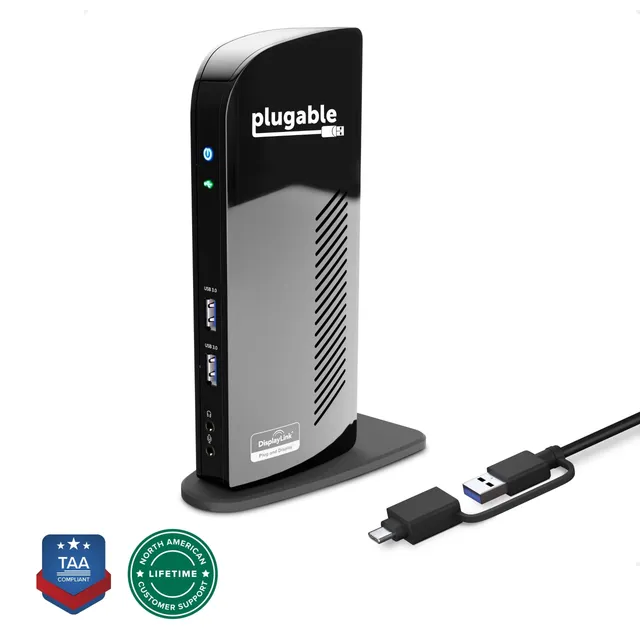
Before counting ports, check how your laptop sends video. Apple silicon MacBooks, Windows Ultrabooks, and Chromebooks all support USB-C with DisplayPort Alt Mode or Thunderbolt, but not every USB-C port is the same. If you want the safest universal option, choose a dock with DisplayLink, like the Plugable UD-3900C. It creates video through a driver and works over USB 3.0 as well as USB-C, so it can handle both a company Windows laptop and a personal MacBook on the same dock.
The phrase “4K UHD” on a dock box is almost meaningless by itself. You need to know how many displays run at 4K, at what refresh rate, and whether the laptop's port can push that bandwidth. A common trap is a dock that outputs two 4K displays only at 30Hz, which makes cursor movement feel sticky. For real work, dual 4K at 60Hz on both HDMI ports is the benchmark. That's exactly what the UD-3900C provides, so it's a solid starting point for any dual-4K desk.
| Your setup | Minimum dock spec |
|---|---|
| One 1080p or 1440p monitor | Any dock with HDMI or DisplayPort |
| Two 1080p monitors | Dual video outputs (HDMI + HDMI or HDMI + DP) on USB-C Alt Mode or DisplayLink |
| Two 4K monitors | Dual 4K60 outputs; DisplayLink recommended for broad USB-C/Thunderbolt compatibility |
| Three or more monitors | DisplayLink dock with a dedicated multi-video chipset |
If you're currently on one 1080p panel, don't overbuy a triple-display monster. But if your desk may grow, a dual-4K dock gives you headroom without forcing a second dock later.
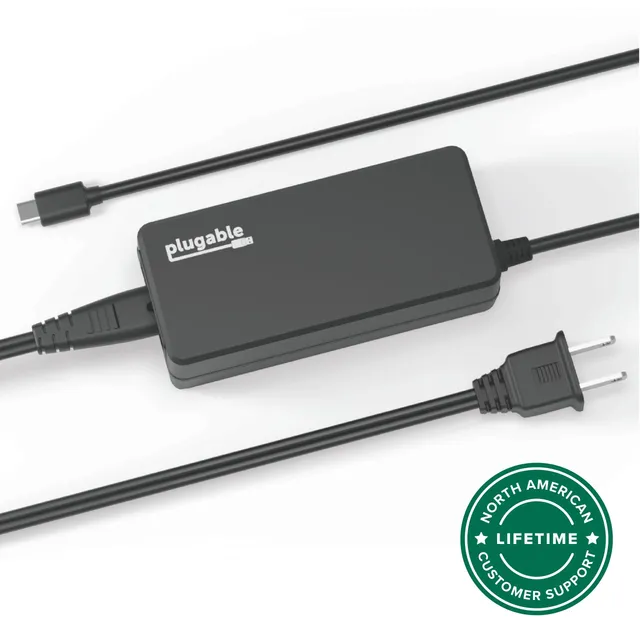
The second number to verify is power delivery, shown as USB-C PD. Your laptop charger's wattage — 45W, 60W, 65W, 90W — tells you how much power the computer needs. A dock that promises laptop charging only works if its USB-C PD output matches or exceeds that. The UD-3900C is bus-powered, which means it doesn't pass power through to your laptop; your laptop keeps its own charger. That's a clean setup for a dual-monitor desk, and it keeps the dock cooler and simpler. If you want a reliable second charger for travel, a 60W USB-C PD brick is enough for phones, tablets, and most ultraportables.
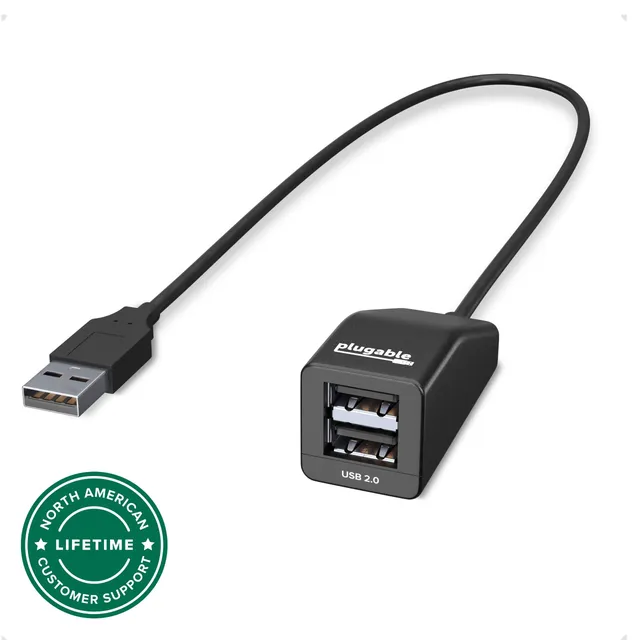
It's also smart to keep a small USB hub in a drawer for low-speed gadgets like a presentation mouse or a headset dongle. That way you don't fill the dock's high-speed ports with items that would be fine on USB 2.0.
Look at how many USB ports run at USB 3.0 or faster. A dock with four USB-A ports may share one controller, so all four devices share the same bandwidth pool — fine for a mouse and keyboard, but poor if you're moving video files or running a capture card. At least two USB 3.0 ports are good for drives, cameras, and audio interfaces; USB 2.0 is okay for keyboard, mouse, and headset dongles. Add a wired Gigabit Ethernet port and you get a stable network connection that never depends on crowded Wi-Fi. The UD-3900C includes four USB-A ports, Ethernet, and audio, which is enough for most desks without an extra hub.
Ports and power don't matter if the dock's driver won't cooperate. DisplayLink docks, like the UD-3900C, require a small driver, and on macOS you'll need to give it Screen Recording and Accessibility permissions. As of August 2026, modern DisplayLink drivers support Apple silicon, Windows 11, and ChromeOS, but the setup still takes a few minutes. If your company locks down driver installation, check with IT before buying. If you're buying for yourself, the flexibility of a universal USB-C/USB-A dock is worth the tiny setup time.
Here's the short decision checklist for August 2026:
For most dual-monitor desks, the Plugable UD-3900C is the most balanced spec sheet under $150: dual 4K60, four USB ports, Ethernet, audio, and USB-C/USB 3.0 compatibility. Pair it with a 60W USB-C charger and a small USB hub if you need flexible power and extra legacy ports, and your 2026 desk setup is done.