$20.00
1
Your cart is empty
Subtotal
We will hold your cart for 15:00.
Buy more, save more
Coupon discount
Shipping
Add 2 more items to unlock your free mystery gift.
Complimentary item.
Total
$20.00
We will hold your cart for 15:00.
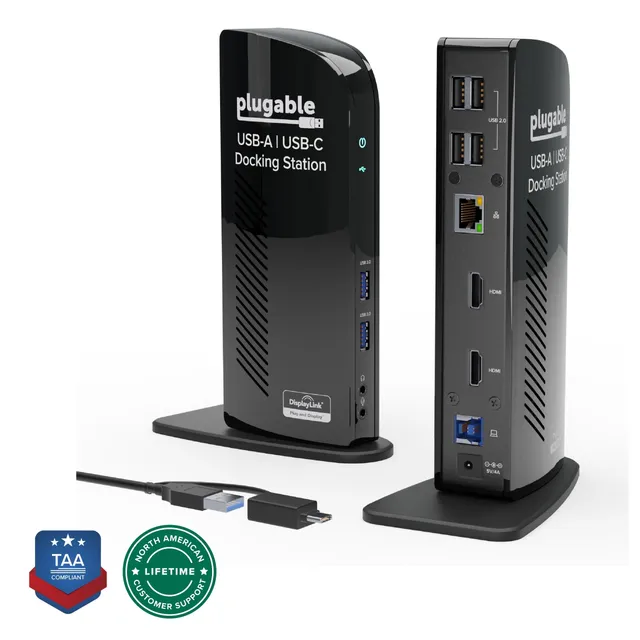
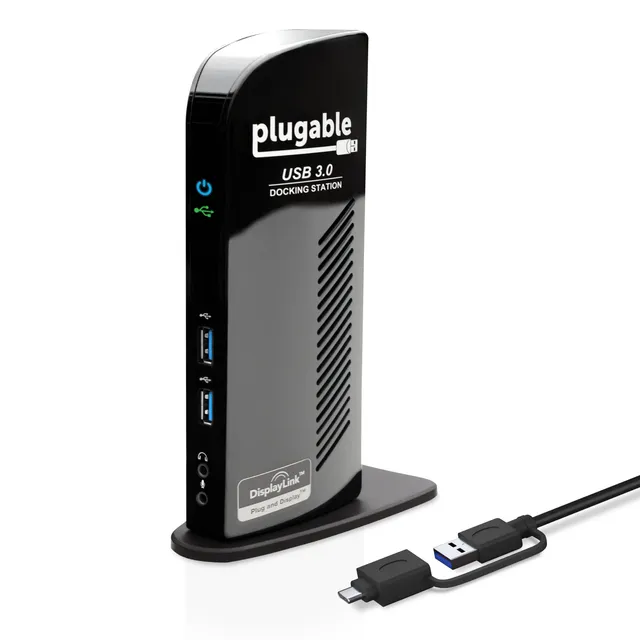
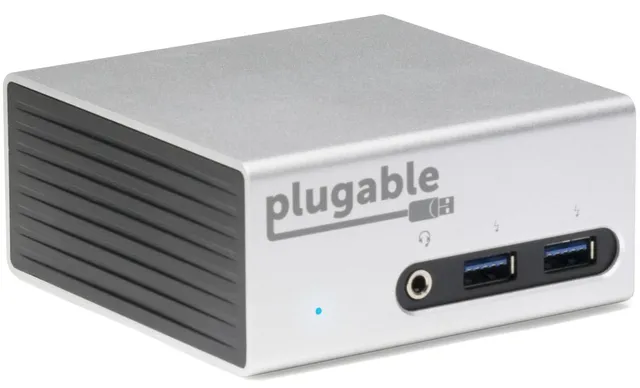
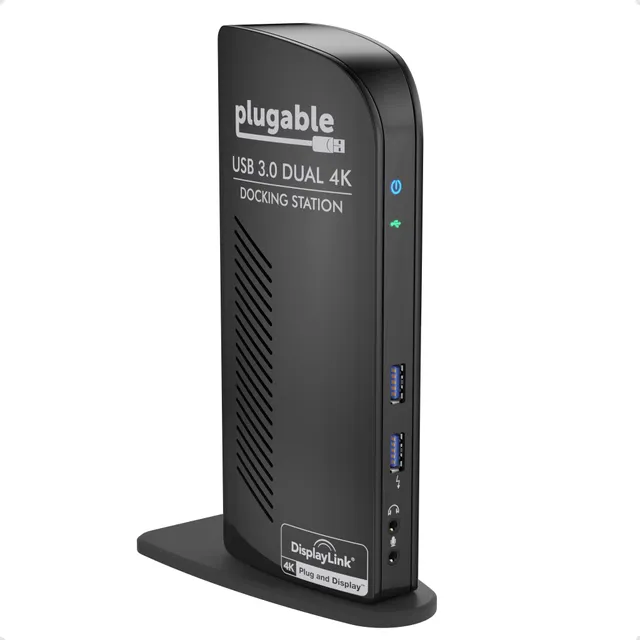
Discover the Plugable UD Series, featuring 4 docking stations priced from $42.50 to $84.65. These docks expand your laptop's connectivity with multiple video outputs, USB ports, and power delivery. Whether you need a universal USB-C dock for a Chromebook or a DisplayLink model for macOS multi-monitor setups, the UD Series has a solution to streamline your workspace.
Each UD Series dock is designed to simplify your desk—plug a single cable to add monitors, peripherals, and network access. Many models support dual or triple displays, and some include 100W pass-through charging to keep your laptop powered. Check the specifications for interface compatibility (USB-C or Thunderbolt) and operating system support. Our selection includes options for Windows, macOS, and ChromeOS, with easy setup and ongoing driver updates.