$20.00
1
Your cart is empty
Subtotal
We will hold your cart for 15:00.
Buy more, save more
Coupon discount
Shipping
Add 2 more items to unlock your free mystery gift.
Complimentary item.
Total
$20.00
We will hold your cart for 15:00.
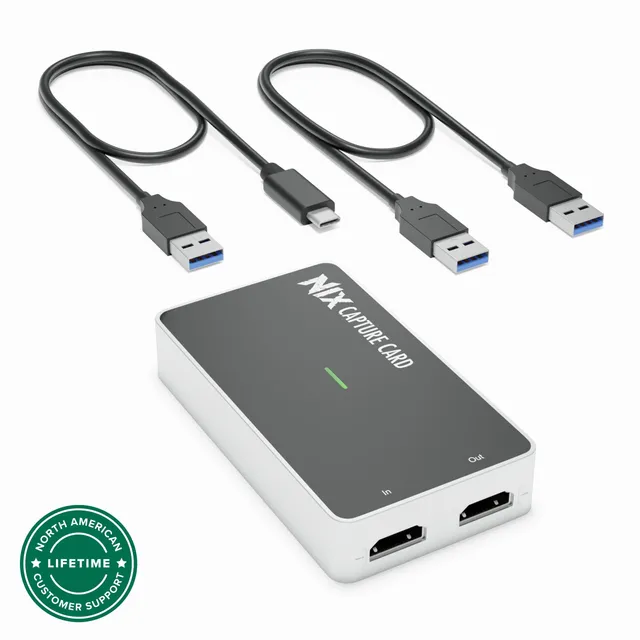
Plugable Capture Cards brings you a straightforward HDMI capture solution—this collection includes 1 product at $14.50. Ideal for streaming gameplay, recording video from cameras, or importing old footage, this plug-and-play capture card works with Windows, macOS, and many Linux systems.
The Plugable capture card in this set offers a compact design and low-latency performance. It connects via USB and supports up to 1080p resolution, making it a great entry-level option. If you've run into HDCP errors or audio sync issues, our resources provide troubleshooting steps.